












SQL Server 2025 Standard raises the edition's limits (up to 32 cores and 256 GB RAM) and adds the new AI-ready engine. Here's how to install and license it properly on Windows Server.
System requirements
- x64 CPU 1.4 GHz minimum (2.0 GHz+ recommended) · RAM 4 GB minimum, 16 GB+ for production
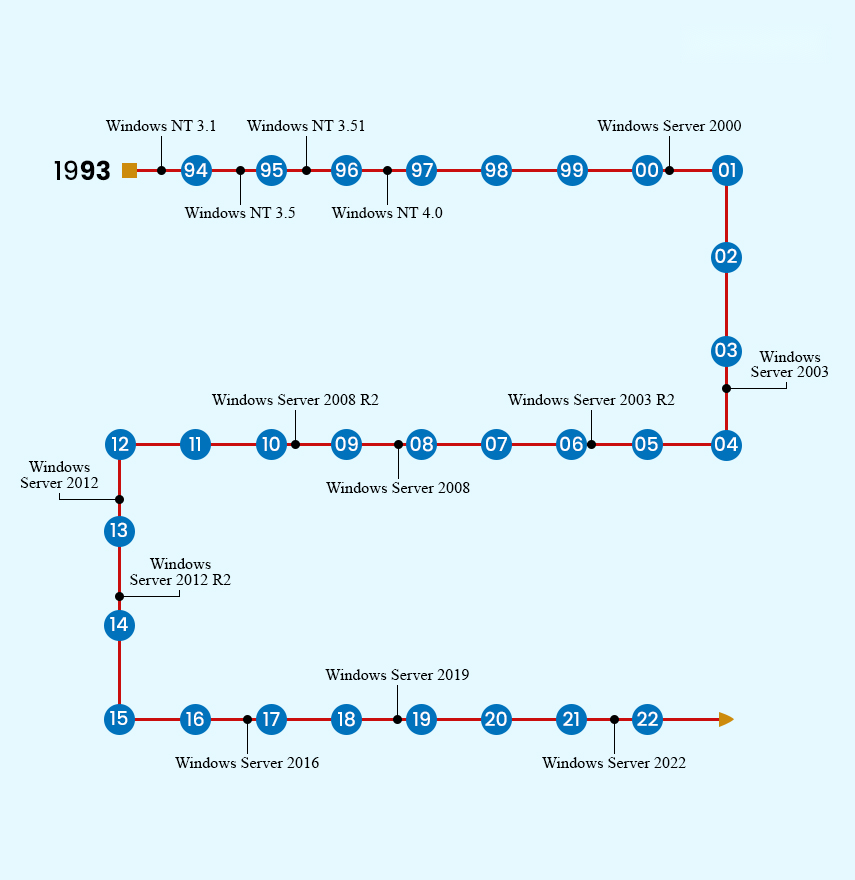
- 6 GB+ free disk (much more for databases) · Windows Server 2019 / 2022 / 2025
- Standard edition limits: 32 cores, 256 GB RAM
Step 1 — Download the media
Get the installer from the Microsoft Evaluation Center — choose the ISO (mount it directly or burn to media) or the CAB package. Your product key converts it to the licensed Standard edition.
Step 2 — Run the setup wizard
- Mount the ISO and run setup.exe → Installation → New SQL Server standalone installation.
- Let it check product updates and prerequisites (fix any failures via Windows Update first).
- Product Key screen: enter your 25-character key here — this is the easiest activation path. (Evaluation installs can be licensed later — see below.)
- Feature selection: at minimum tick Database Engine Services; add Replication, Integration Services and connectivity tools as needed.
- Instance: keep the default instance unless you run multiple versions side by side.
- Server configuration: leave the default service accounts unless your domain policy says otherwise.
- Database Engine configuration: choose Windows authentication or Mixed mode (set a strong SA password), and click Add Current User as administrator.
- Install — typically 10–30 minutes.
Step 3 — Activate / license
Fresh install: the key you entered on the Product Key screen licenses the server — nothing more to do.
Evaluation → Standard: run setup.exe → Maintenance → Edition Upgrade → enter your Standard key → complete the wizard. Databases and settings are preserved.
Step 4 — Verify with SSMS
Install SQL Server Management Studio (free from Microsoft), connect to your instance, right-click the server → Properties — the Edition should read Standard. Or run:
SELECT @@VERSION, SERVERPROPERTY('Edition');
Troubleshooting
- Prerequisite check failures — install pending Windows Updates and restart, then re-run setup.
- Key not accepted — confirm it's a SQL Server 2025 Standard key and copy-paste it from your order email.
- Service won't start — check the SQL Server service account and the Windows Event Log for the specific error.
- Can't connect remotely — enable TCP/IP in SQL Server Configuration Manager and open port 1433 in the firewall.
- Driver/TLS errors from apps — SQL Server 2025 prefers TLS 1.3; update the client's ODBC / OLE DB drivers.
Get a genuine licence
Genuine SQL Server 2025 / 2022 / 2019 Standard keys with instant delivery — available at SoftwareKey.us with free installation support.